


Description
Testimonials Carousel Web Part
The Testimonials Carousel is a commercial SharePoint Framework (SPFx) web part built for organizations that want to showcase customer feedback, employee shout-outs, client success stories, or peer reviews on a SharePoint Online page – without provisioning a SharePoint list, wiring up an external API, or asking IT for a code change every time a new quote comes in.
It behaves like the testimonial sliders seen on modern marketing websites, but it’s built natively for the SharePoint Framework, so it drops straight into any modern page, communication site section — fully governed by SharePoint permissions and your organization’s existing security model.
Who It’s For
- Corporate communications & intranet teams publishing employee recognition, “voice of the customer,” or culture content on a Microsoft 365 intranet.
- Sales and marketing teams showcasing client testimonials on a public-facing SharePoint Online site.
- Partner/reseller and IT consulting firms wanting a polished, branded reviews section without a web development project.
- HR and internal comms running “employee spotlight” or engagement campaigns on SharePoint or Viva Connections.
Key Features
True Sliding, Infinitely-Looping Carousel
Cards animate on a real CSS-transitioned track — not an instant content swap – and the loop is seamless in either direction, so Next, Previous, and autoplay can be used indefinitely without ever hitting a visible “end” or jump-cut.
Add, Edit, and Delete Testimonials Inline – No List Required
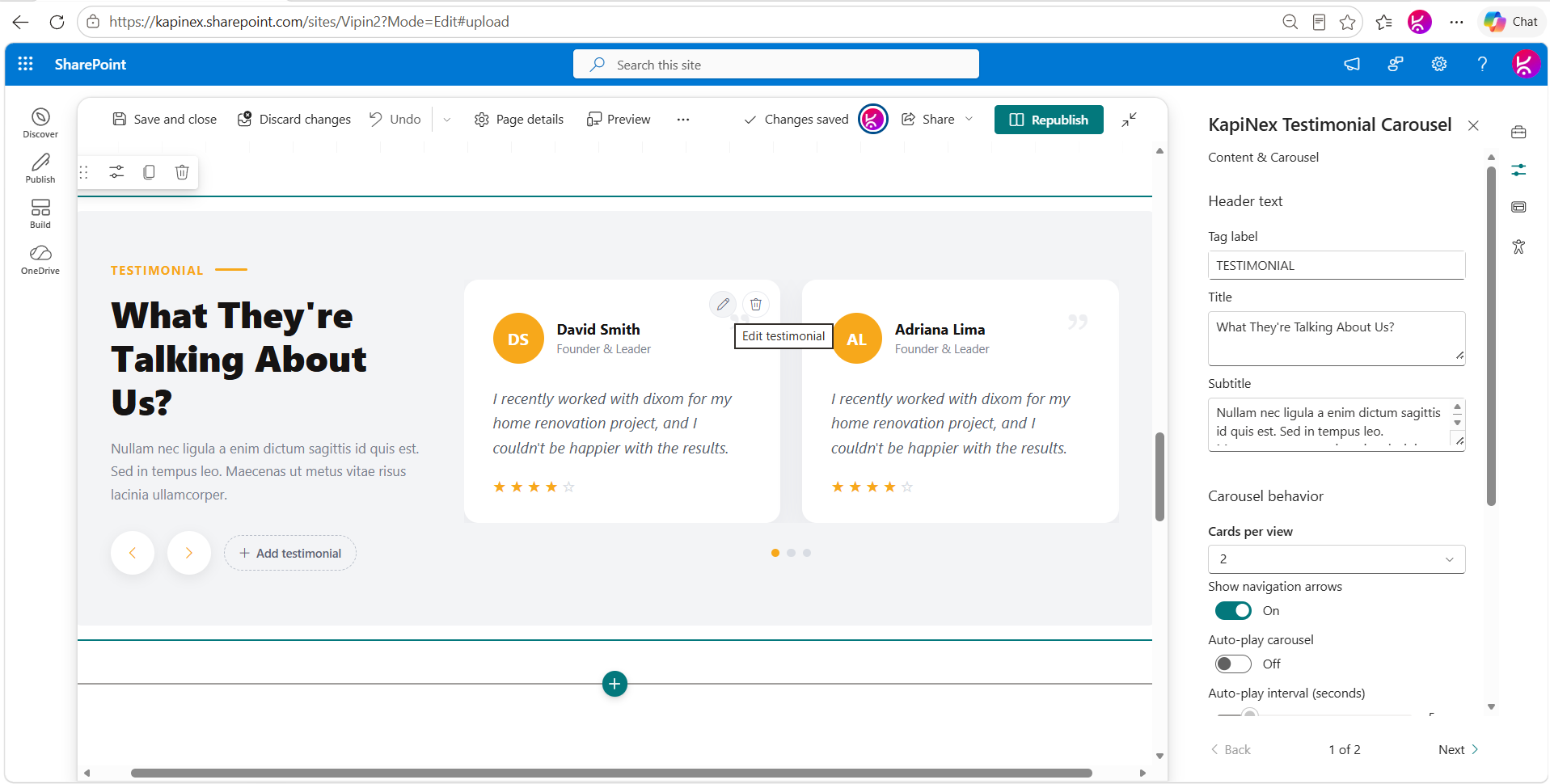
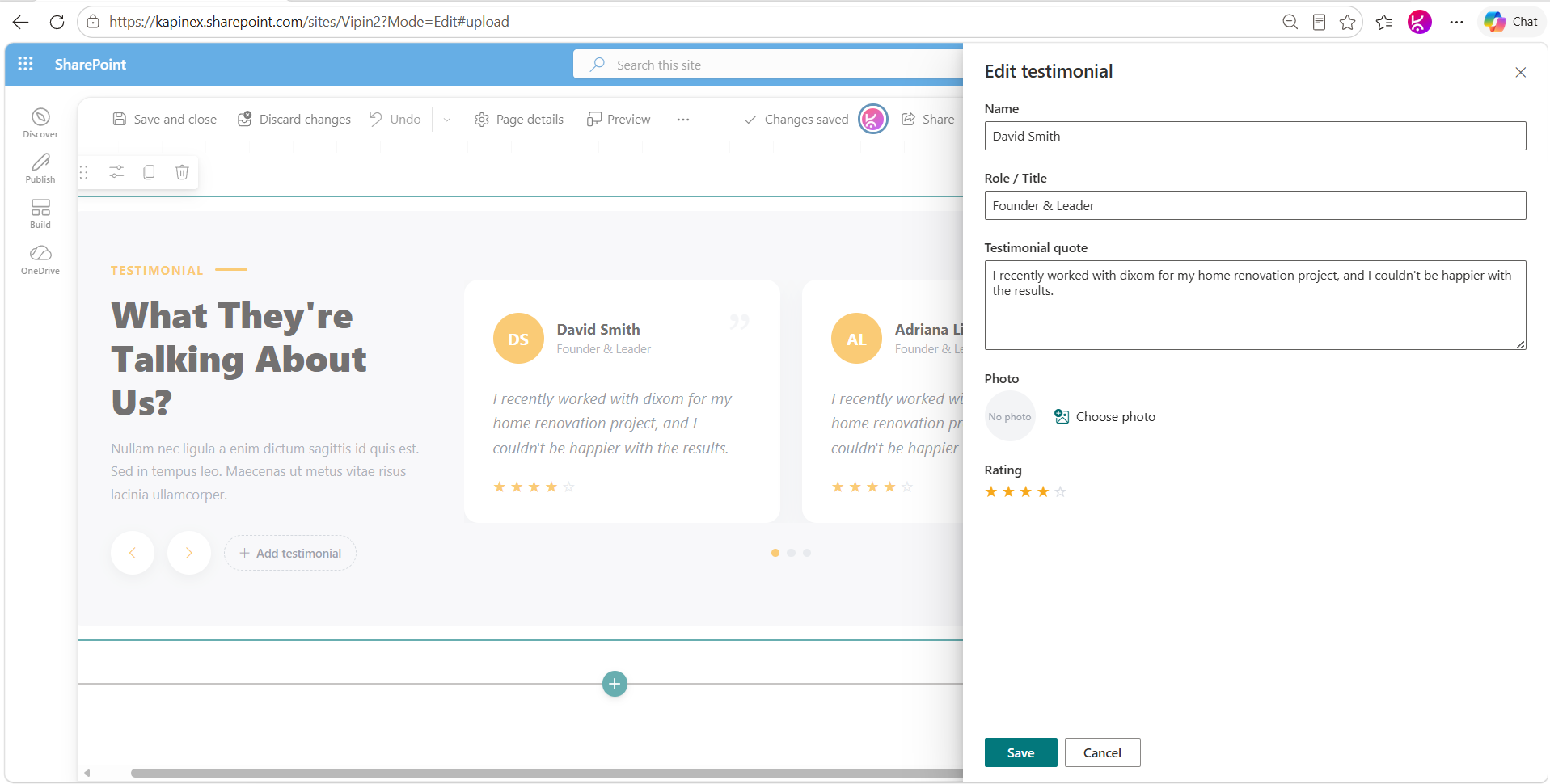
Content editors work directly on the live page in Edit mode: click-to-type text fields, an “Add testimonial” side panel, and per-card edit/delete controls on hover. Every testimonial — name, role, quote, photo, and 5-star rating — is stored as a web part property, so there’s no SharePoint list, library, or external database to configure or maintain.
Built-In Photo Picker with SharePoint Asset Integration
The photo field uses the PnP FilePicker control, giving editors one button with tabs for local upload, Site Assets, Organization Assets, OneDrive, Stock Images, or a direct image link — images are automatically resized and compressed client-side to keep the page lightweight.
Full Branding Control from the Property Pane
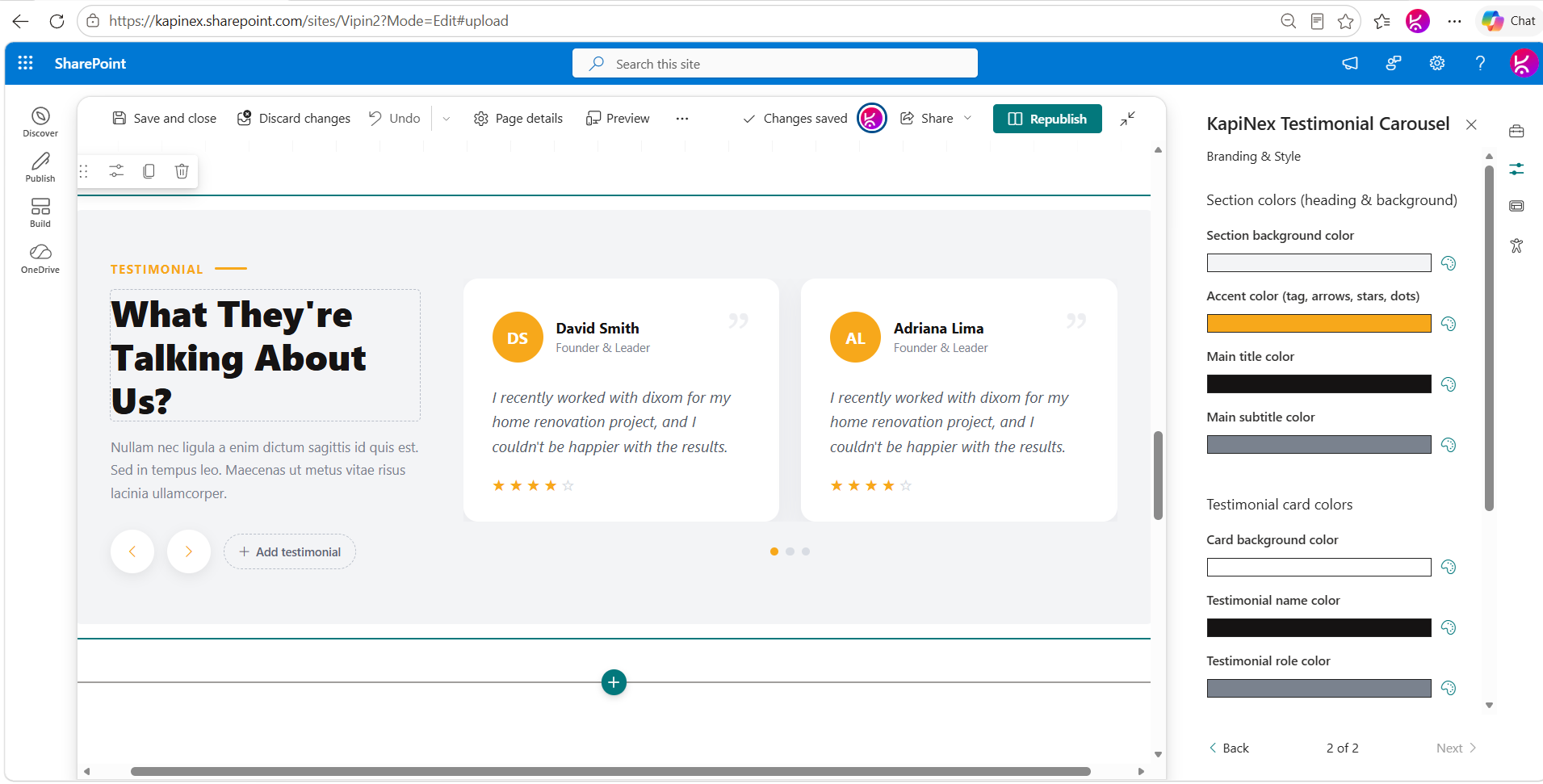
A two-page property pane exposes section colors, card colors, accent colors, font family (Segoe UI, Poppins, Georgia, Roboto, Arial, Verdana), and corner radius — all through a real Fluent UI color picker, so the carousel matches your brand exactly without touching CSS.
Responsive by Default
Cards-per-view automatically steps down (4 → 2 → 1) as the viewport narrows, the two-column header/carousel layout collapses to a single column under ~900px, and there’s no separate mobile configuration to manage.
How It Works (At a Glance)
- Add the web part to any modern SharePoint page.
- Switch the page to Edit mode and use “Add testimonial” to create entries — name, role, quote, photo, star rating.
- Newly added testimonials appear first in the carousel automatically.
- Open Branding & Style in the property pane to match section colors, fonts, and card shape to your brand.
- Publish the page — end users see a clean, animated carousel with no edit affordances.
Feature & Configuration Reference
| Category | What You Can Control |
|---|---|
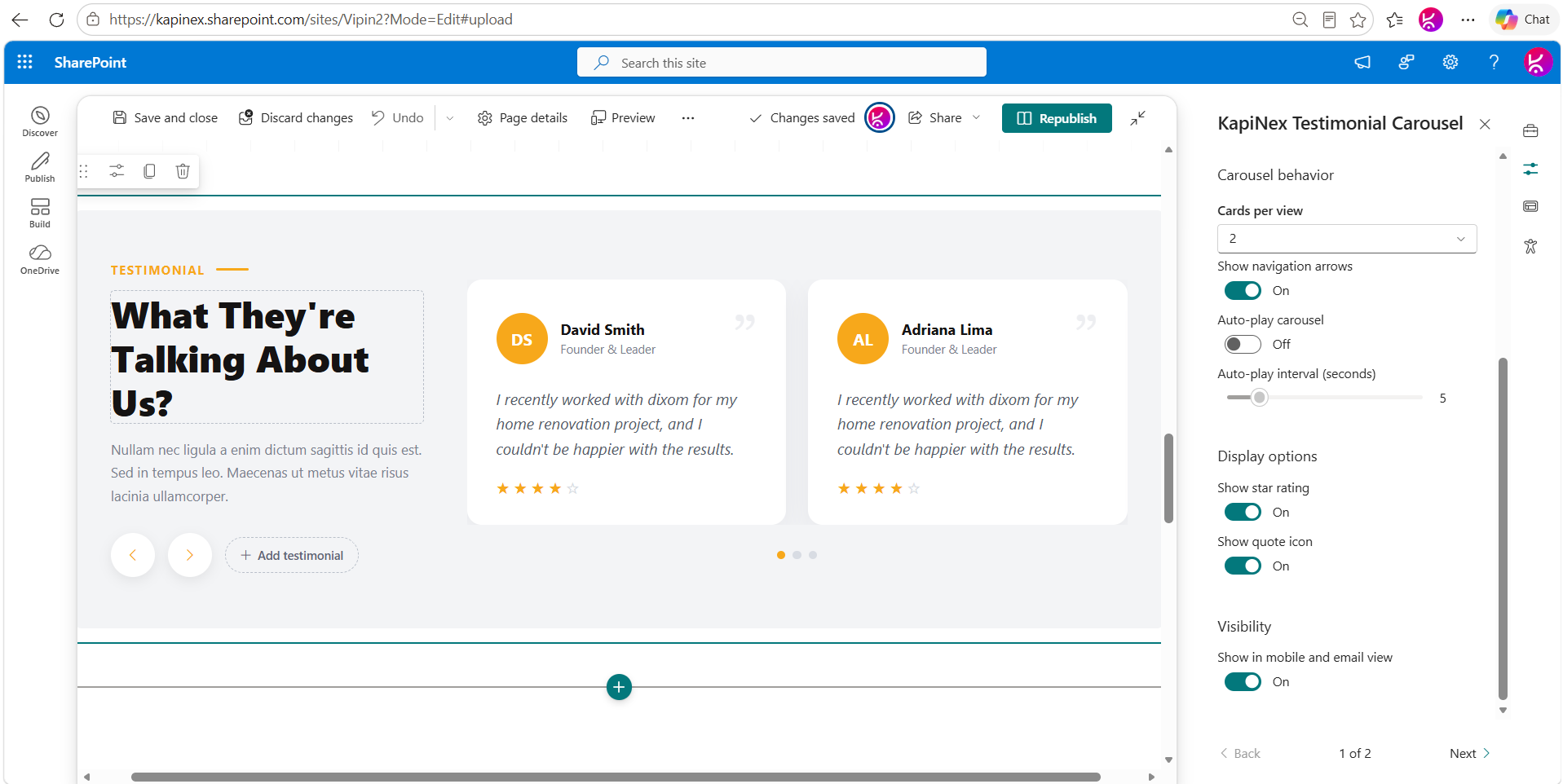
| Carousel behavior | Cards per view (1–4, auto-responsive), autoplay on/off, autoplay interval (3–15s), navigation arrows on/off |
| Content | Tag label, title, subtitle — all inline-editable text |
| Per-testimonial fields | Name, role/title, quote, photo, 5-star rating |
| Display options | Show/hide star rating, show/hide quote icon |
| Section colors | Background, accent (arrows/dots/stars/tag), title color, subtitle color |
| Card colors | Background, name color, role color, quote text color, quote-mark color |
| Typography & shape | 6 font families, corner radius 0–40px |
| Photo source | Local upload, Site Assets, Organization Assets, OneDrive, Stock Images, direct link |
Frequently Asked Questions
Does the Testimonials Carousel web part require a SharePoint list or external data source? No. Every testimonial — name, role, quote, photo, and rating — is stored directly in the web part’s own properties. There is no list, library, or database to create or maintain.
Can content editors add or update testimonials without a developer? Yes. In Edit mode, any user with page-editing permissions can add a testimonial via a side panel, edit an existing one by hovering the card and clicking the pencil icon, or delete one with a confirmation prompt — no code or developer involvement is needed.
Where do new testimonials appear in the carousel? Newly added testimonials are automatically shown first (prepended to the carousel), so the latest addition is immediately visible. Editing an existing testimonial does not change its position in the order.
Is the testimonials carousel responsive on mobile and tablet? Yes. Cards-per-view automatically reduces from the configured value down to 2 under roughly 980px width and to 1 under roughly 640px width, and the overall layout collapses from two columns to one under about 900px — no separate mobile settings are required.
Can I brand the carousel to match my company’s colors and fonts? Yes. The property pane’s Branding & Style page provides separate color controls for the section background, accent color, main title/subtitle, and card elements (background, name, role, quote text, quote mark), plus a choice of six font families and an adjustable card corner radius from sharp to fully rounded.
Does the photo picker work outside of a live SharePoint tenant? The Local Upload, Link, and Stock Images tabs work anywhere. The Site Assets, Organization Assets, and OneDrive tabs call live SharePoint APIs and require a real, signed-in tenant context, so they will not return results in an offline or local-only preview environment.
What happens if all testimonials are deleted? Edit mode displays an “Add your first testimonial” prompt in place of an empty carousel, so the page never shows a broken or blank state to editors.
Does the carousel loop forever, or does it stop at the last testimonial? It loops seamlessly and indefinitely in both directions. The track is padded with cloned testimonials at each end, and when a transition crosses into the cloned region it snaps back to the equivalent real position with the transition briefly disabled — so the loop point is invisible to site visitors.
Is this web part suitable for a public-facing SharePoint Online site or only an internal intranet? Both. It’s commonly used on public-facing communication sites to display client/customer reviews, and on internal intranets and Viva Connections dashboards for employee recognition or “voice of the customer” content — the branding controls make it fit either context.
Where This Fits in Your Microsoft 365 Environment
The Testimonials Carousel is delivered as a standard SPFx web part package, so it installs like any other SharePoint solution: upload to the tenant or site App Catalog, add to a page, configure. It works alongside other modern SharePoint web parts and Viva Connections, and it respects existing SharePoint permissions — anyone who can edit the page can manage testimonials; anyone who can view the page sees the published carousel.
Note: Full-width sections are a standard SharePoint limitation. They are natively supported only on Communication Sites and are not available on Team Sites. This applies to all web parts, including Microsoft’s out-of-the-box web parts and custom-developed ones.
If you are using a Team Site and need a full-width layout, you can download and install our FullWidth extension from here.



There are no reviews yet.