

Description
Turn a plain document library into a browsable catalog
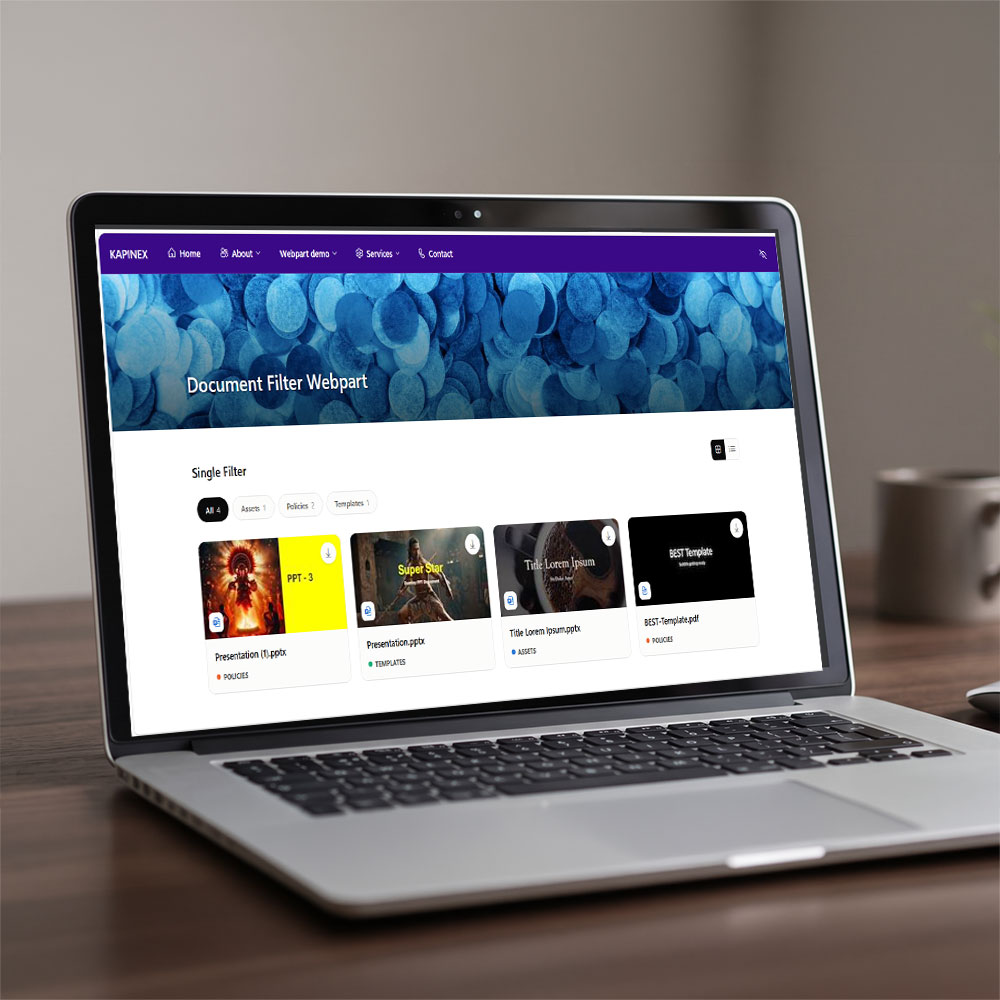
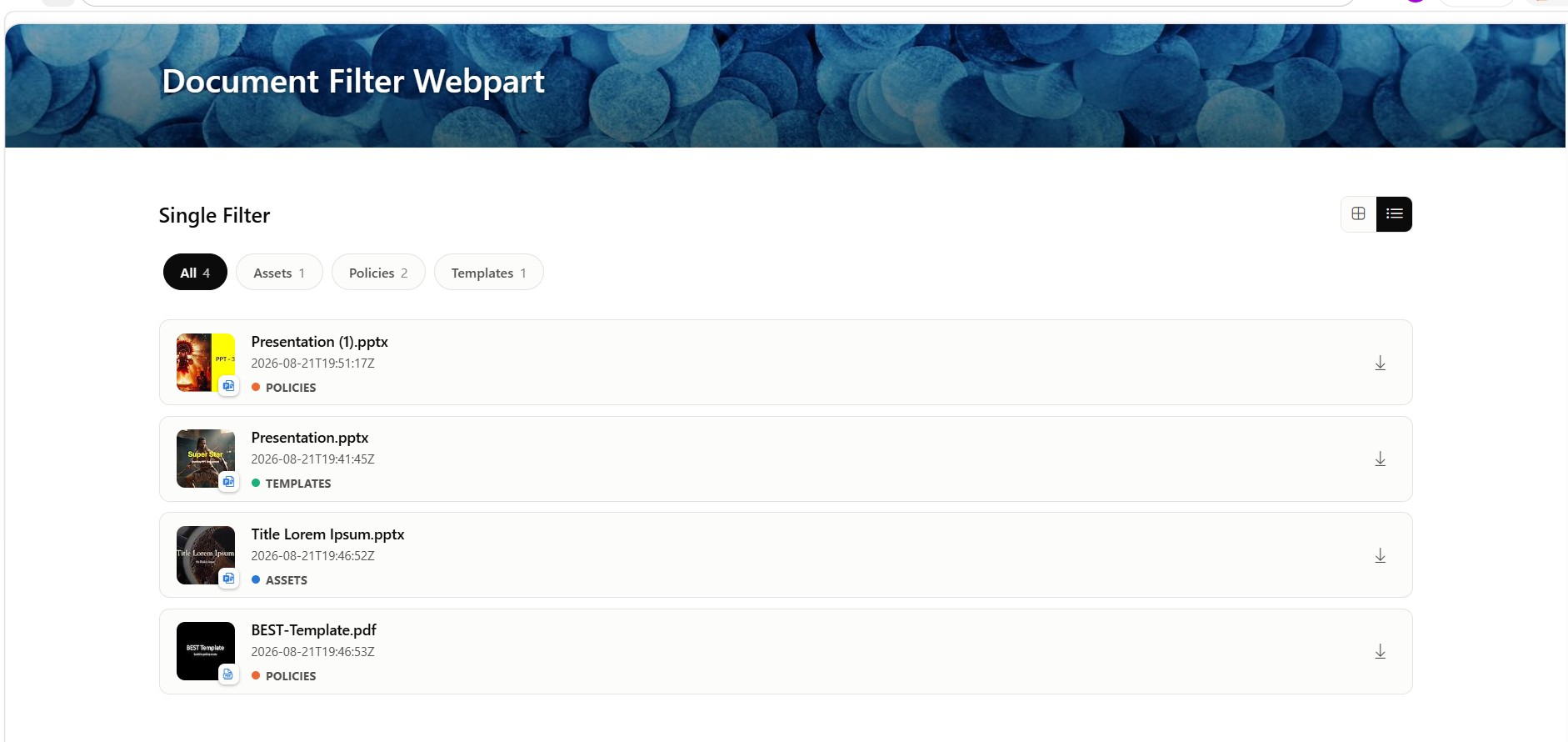
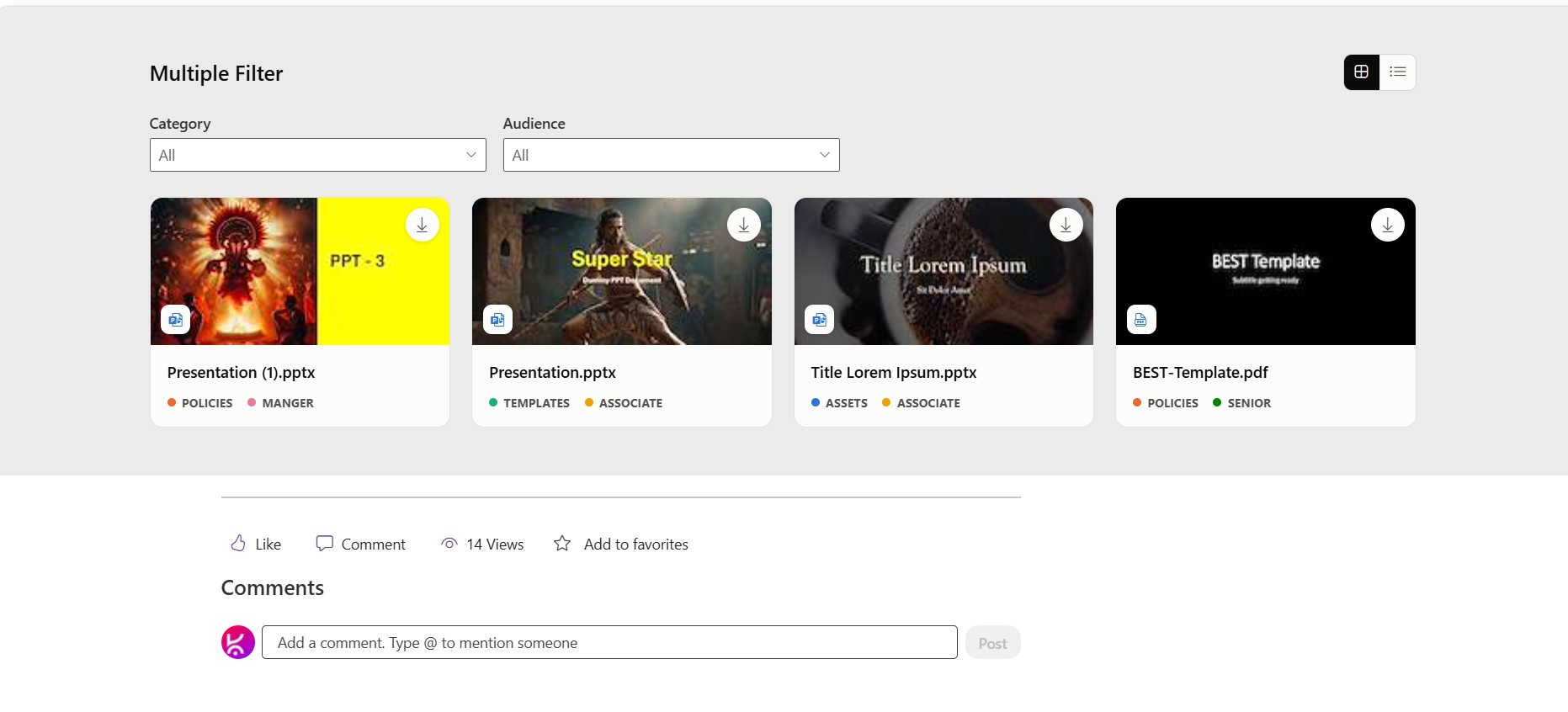
Document Library Filter is a SharePoint Framework (SPFx) web part that transforms any SharePoint document library into a browsable, filterable catalog — closer to a template gallery than a flat list view. Site owners connect the web part to a document library and choose which columns act as filter categories, entirely from the property pane. There is no code to write and no SharePoint view configuration required. Visitors filter by category, switch between tile and list layouts, preview real document thumbnails, and open or download files without ever leaving the page.
It’s built for teams who need people to find documents, not scroll through them: policy libraries, brand asset hubs, template galleries, HR document centers, knowledge bases, and any SharePoint site where a document library has outgrown a simple list view.
What is the Document Library Filter web part used for?
Document Library Filter is used to make a SharePoint document library easier to browse and search visually. Instead of a standard list of file names, visitors see a card-based gallery (or compact list) with thumbnails, category tags, and filters — similar to browsing a product catalog or app store, but powered entirely by an existing SharePoint document library.
Key features
No-code configuration (property pane)
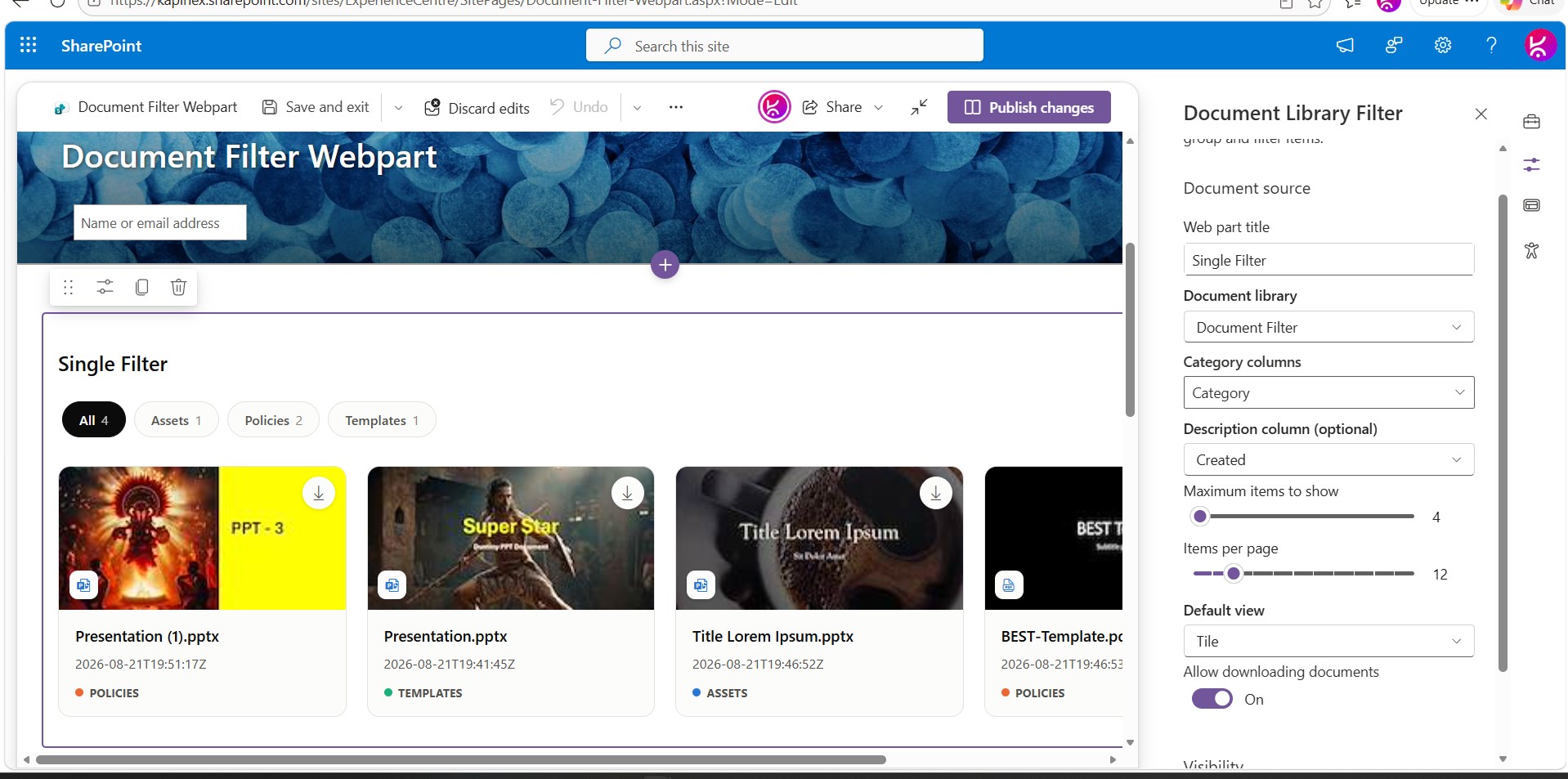
- Document library picker – a dropdown populated live from the current site’s document libraries. No manual list ID or GUID entry.
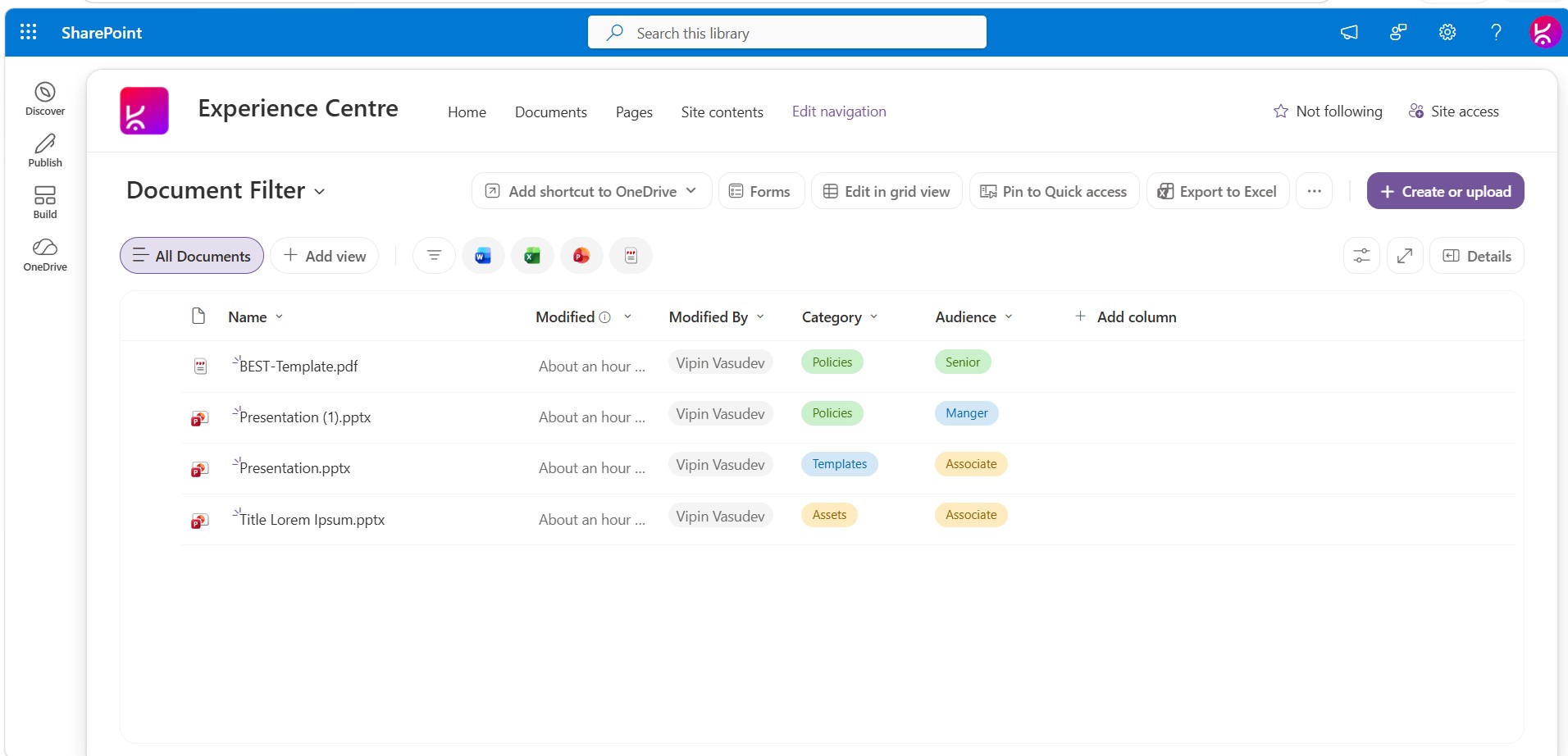
- Category columns (multi-select) – choose one or more Text or Choice columns to drive filtering, with field options loaded dynamically from the selected library.
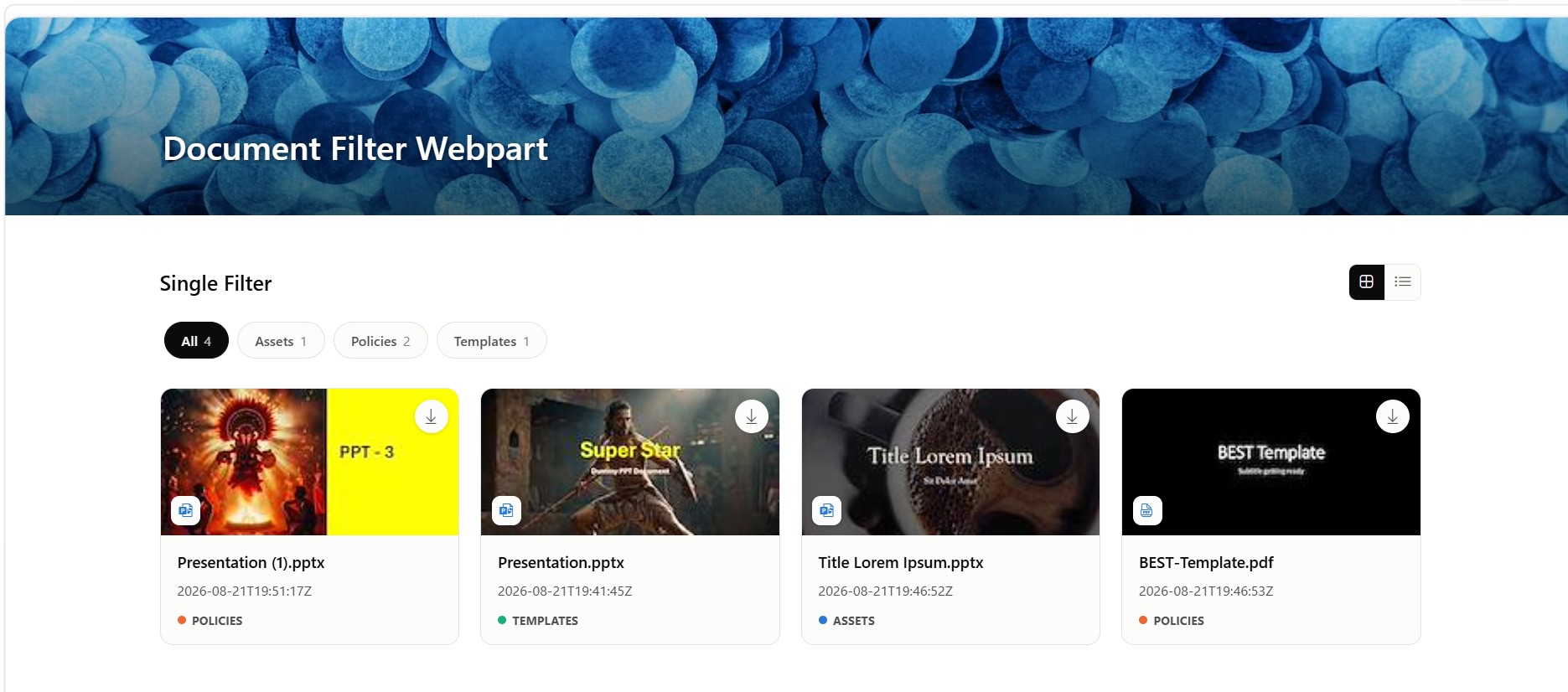
- Select one column → a single row of filter pills (All + one pill per distinct value, with item counts).
- Select two or more columns → an independent multi-select dropdown per column, so each dimension filters separately.
- Description column (optional) — display any Text, Note, Number, Date, Boolean, Currency, Hyperlink, or Multi-choice column as supporting text on each card. Lookup and Person columns are excluded, since they’d require extra lookups to resolve a name instead of a bare ID.
- Maximum items to show — caps how many documents are fetched from the library (4–100).
- Items per page — controls client-side pagination of the filtered result set (4–48), independent of the fetch cap.
- Default view — set the initial layout to Tile or List; visitors can still switch at runtime.
- Allow downloading documents — toggle the download action on or off entirely.
- Web part title — a free-text heading shown above the filters.
Browsing experience
- Tile and List view switcher — a header toggle swaps between a card-grid gallery and a compact row list, both sharing the same filters, pagination, and underlying data.
- Cascading category filters — with multiple category columns configured, selecting a value in one facet narrows the options available in the others, and vice versa. Values with zero remaining matches disappear rather than showing a “(0)” count, and stale selections are pruned automatically once they’re no longer valid.
- Real document thumbnails — pulled from SharePoint’s file preview service, with a small file-type icon badge overlaid on top. Falls back to the icon alone when no thumbnail is available yet (for example, on brand-new files).
- Category tags — each card or row displays its resolved category value(s) as color-coded tags, using a fixed, colorblind-safe palette that adapts to light and dark theme.
- Pagination — Previous/Next controls with a “Page X of Y” indicator, shown only when results span more than one page.
- Smart open behavior — Office documents (Word, Excel, PowerPoint) open through SharePoint’s native
Doc.aspxpreview/edit experience rather than a raw file link. Other file types (PDF, images, etc.) open directly, since browsers already render those natively. Clicks are handled explicitly so the modern SharePoint page shell doesn’t intercept navigation. - One-click download — a dedicated download button, independent of the “open” action, forces a real file download via SharePoint’s download handler regardless of file type.
- Empty, loading, and error states — a clear call-to-action when no library is configured, a spinner while loading, and a friendly message when a filter combination has no matches.
- Theme-aware — automatically respects the host page’s light or dark theme.
Note: Full-width sections are a standard SharePoint limitation. They are natively supported only on Communication Sites and are not available on Team Sites. This applies to all web parts, including Microsoft’s out-of-the-box web parts and custom-developed ones.
If you are using a Team Site and need a full-width layout, you can download and install our FullWidth extension from here.
Frequently asked questions
What is the Document Library Filter web part? It’s an SPFx web part that displays a SharePoint document library as a filterable, browsable gallery of files with thumbnails, category filters, and tile/list layouts, instead of a plain list view.
Do I need to write code or configure a SharePoint view to use it? No. Every setting — the source library, filter columns, description column, layout, and item limits — is configured through the web part’s property pane. No code and no view configuration are required.
How many columns can I use for filtering? Any number of Text or Choice columns. Using one column shows a single row of filter pills; using two or more shows an independent multi-select dropdown for each column, with the filters cascading against one another.
Does it show real document thumbnails? Yes. Thumbnails are fetched from SharePoint’s file preview service, with a file-type icon badge overlaid. If a thumbnail isn’t ready yet — for example, on a newly uploaded file — the icon displays alone as a fallback.
Can visitors download files directly from the gallery? Yes, if the site owner enables the “Allow downloading documents” option. A dedicated download button forces a real file download via SharePoint’s download handler, separate from the “open” action.
Does it work with any document library column type? Category filtering supports Text and Choice columns. The optional description field supports Text, Note, Number, Date, Boolean, Currency, Hyperlink, and Multi-choice columns. Lookup and Person columns are not supported as description fields, since resolving them to a display name would require additional lookups.
Does it support dark mode? Yes. The web part automatically adapts to the host page’s light or dark theme, including the color-coded category tags, which use a fixed, colorblind-safe palette.
Is there a limit to how many documents it can display? Site owners set a maximum items-to-show value (4–100) controlling how many documents are fetched, and a separate items-per-page value (4–48) controlling pagination of the filtered results.
Ideal use cases
- Policy and compliance document libraries
- Brand asset and marketing collateral hubs
- Template galleries (contracts, forms, presentations)
- HR document centers (handbooks, benefits guides, forms)
- Internal knowledge bases and SOP libraries
- Any SharePoint document library site owners want visitors to browse, not just scroll



There are no reviews yet.