

Description
What is Flipbook Designer for SharePoint?
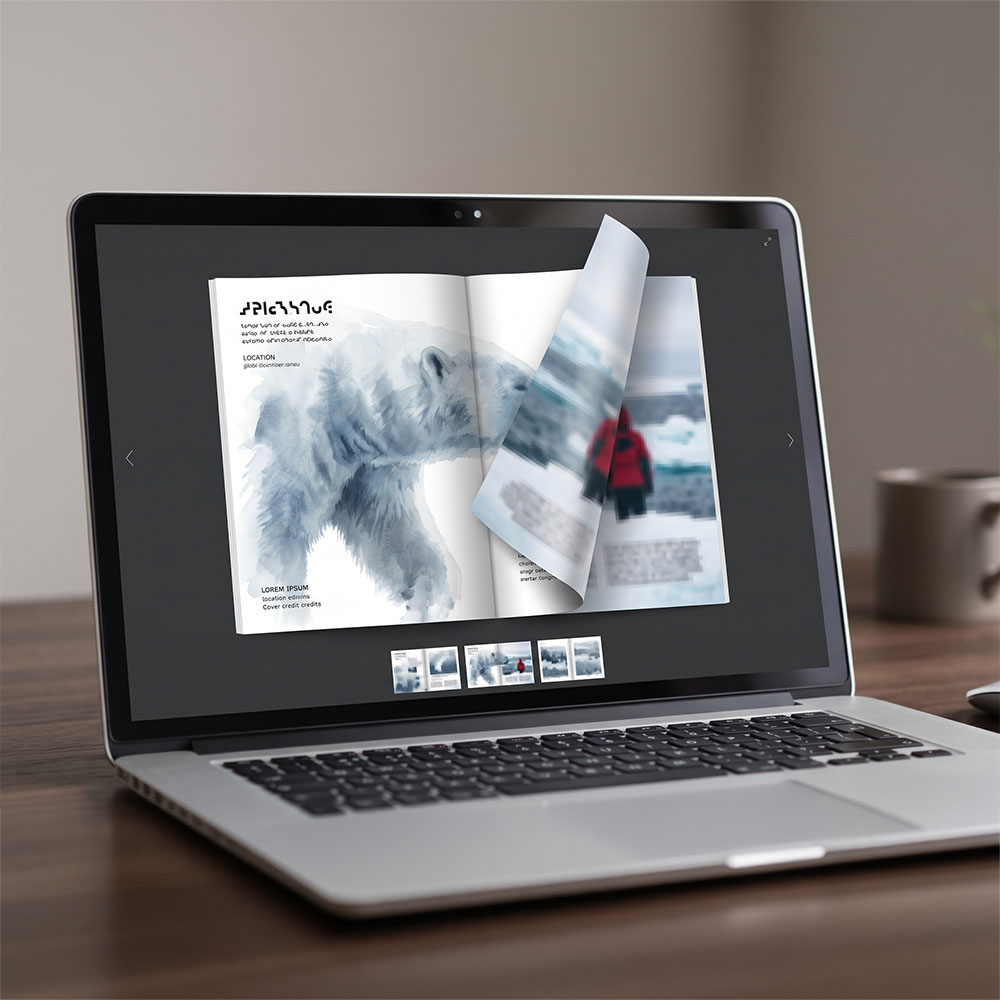
Flipbook Creator for SharePoint is a web part for SharePoint Online that turns pages designed in SharePoint into a digital flipbook with a realistic page-turn animation. Editors build each page visually with text, images, video, charts and tables; readers flip through the finished publication on desktop, tablet or phone. Unlike PDF flipbook tools, there is no file to upload or convert, and nothing is hosted outside Microsoft 365.
Key facts
| Attribute | Detail |
|---|---|
| Product type | SharePoint Framework (SPFx) web part |
| Platform | SharePoint Online (Microsoft 365) and Microsoft Teams |
| What it creates | Interactive, page-turning flipbooks designed page by page |
| Typical publications | Newsletters, product catalogues, employee handbooks, annual reports, event magazines, onboarding guides |
| Where content is stored | SharePoint lists and a versioned document library in your tenant |
| Access control | Native SharePoint permissions – separate rights for editors and readers |
| Export options | PDF and a standalone HTML flipbook |
| External services required | None |
Why teams choose Flipbook Designer
- No design software or PDFs. Build every page in a visual editor inside SharePoint instead of exporting from InDesign, Word or Canva.
- Engaging reading experience. A realistic page-turn animation, swipe and keyboard navigation turn intranet content into something people actually read.
- On-brand by default. Brand kits apply company colours, fonts and logos to every page in one click.
- Fast to start. Six starter flipbooks and 16 page layouts give editors a finished structure to customise.
- Secure and compliant. Content lives in SharePoint lists and libraries, so existing permissions, retention, sensitivity labels and eDiscovery apply.
- Easy to share. Share a link, embed the flipbook on another page or in Teams, or download a standalone version for external audiences.
Features
Visual page designer
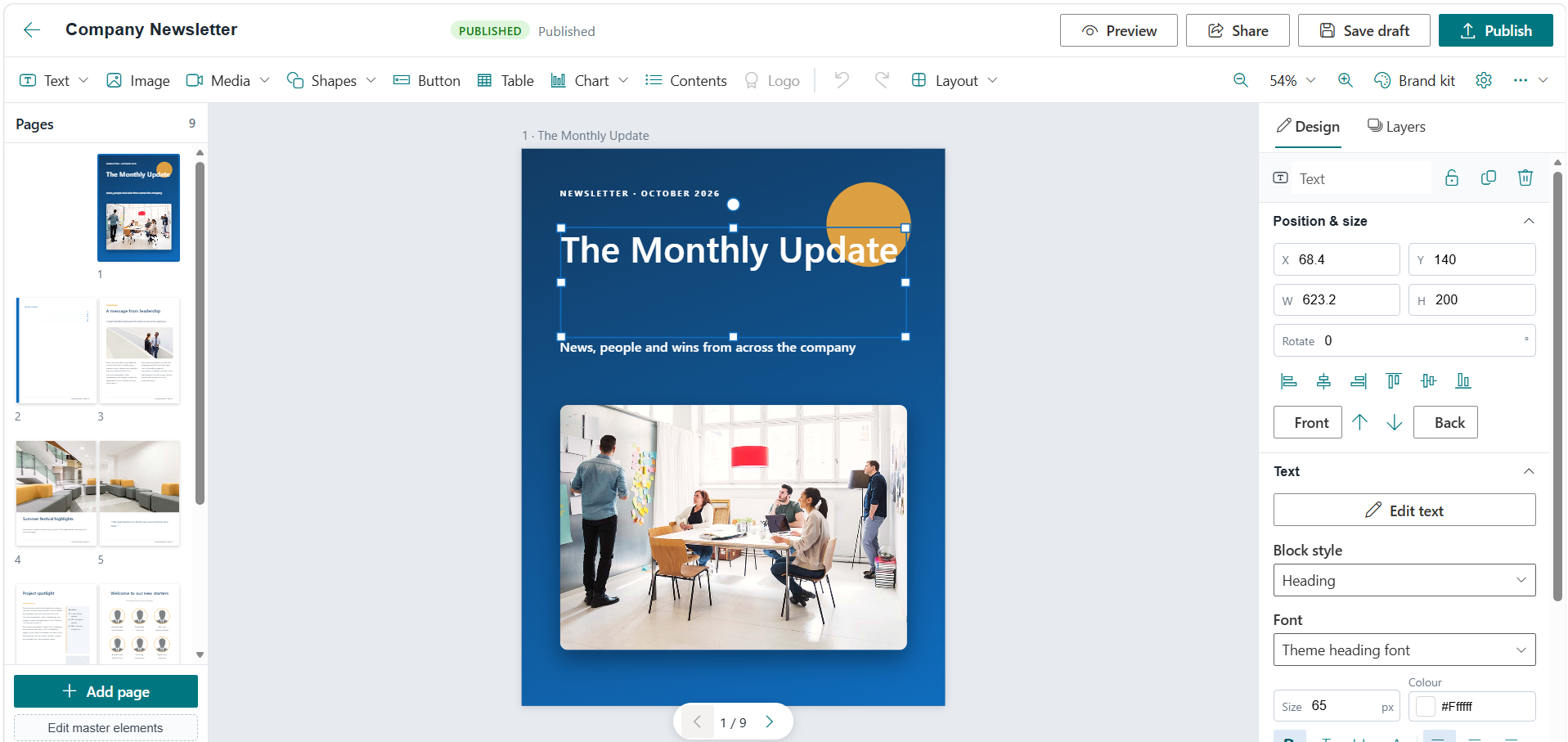
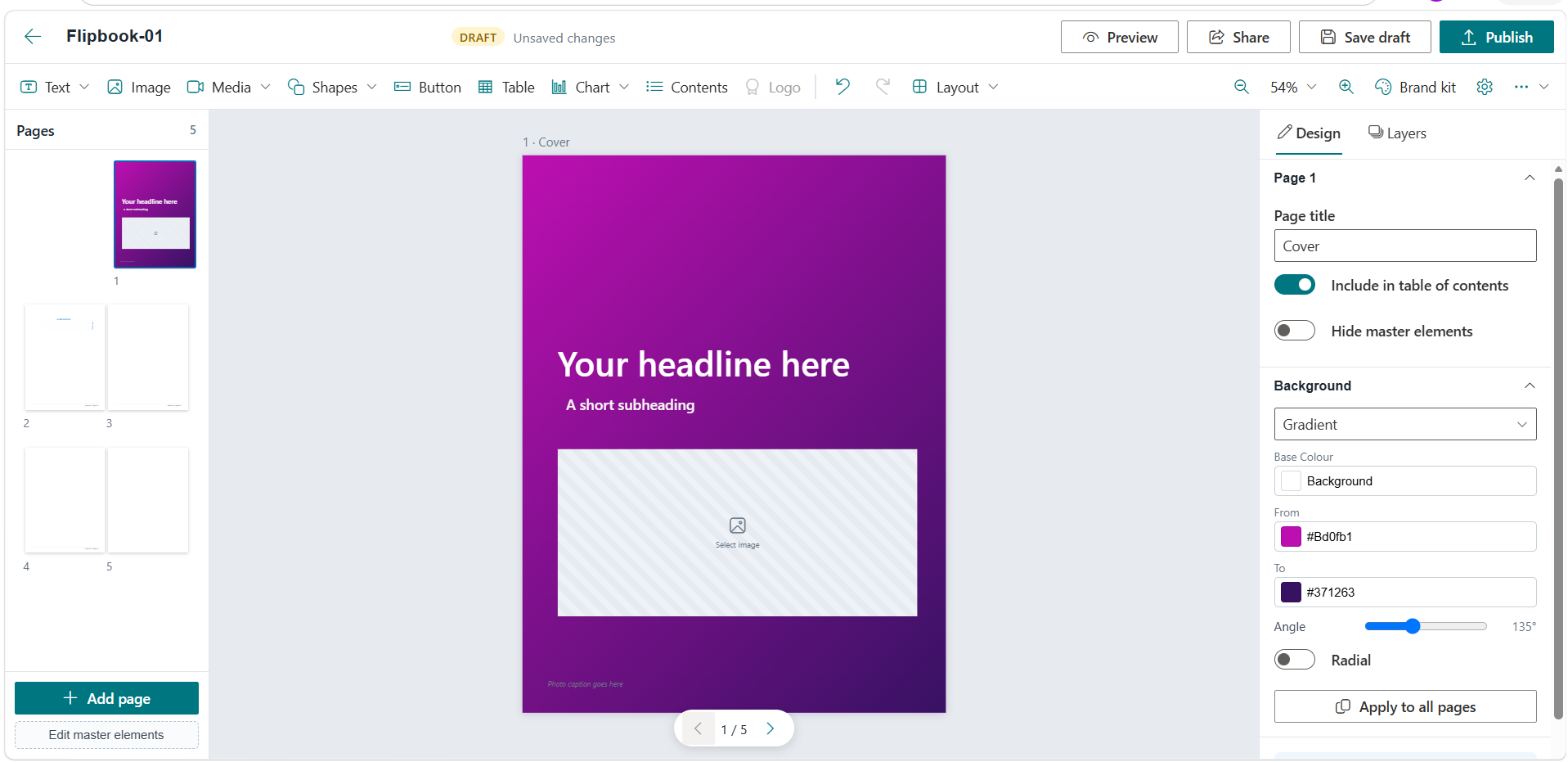
- Drag-and-drop editor: place, resize, rotate and layer elements freely on each page.
- Smart alignment guides, custom guides and a snap-to grid keep layouts tidy.
- Multi-select, align and distribute, and a layers panel with lock and hide.
- Undo and redo, copy and paste, duplicate, and arrow-key nudging.
- Paste or drop images straight onto the page – they upload to SharePoint automatically.
- Two-page spread design: content placed across the centre flows onto the facing page.
Content elements
- Rich text: headings, paragraphs, lists, quotes and callouts with full font, colour, size and alignment control.
- Images: from SharePoint libraries, OneDrive, stock images, uploads or a link, with cropping, borders, rounded corners, shadows and filters.
- Video and audio: SharePoint and Microsoft Stream videos, YouTube and Vimeo links, and audio clips that play inside the page.
- Shapes, icons and dividers: 16 shapes with gradient fills, about 100 icons and six divider styles.
- Buttons and hyperlinks: link to SharePoint pages, documents, websites, email addresses or another page in the flipbook.
- Tables and charts: tables with Excel/CSV paste, and column, bar, line, area, pie and donut charts.
- Automatic table of contents: built from page titles and kept up to date.
Page management
- Thumbnail panel to add, duplicate, delete and drag-and-drop reorder pages.
- 16 ready-made layouts, including cover page, two-column article, photo spread, team profile and contents page.
- Master elements – headers, footers, logos and automatic page numbers – applied across all pages.
- Per-page backgrounds: solid colours, gradients, images with overlays or patterns.
- Standard and custom page sizes, including A4, Letter, square and widescreen.
Templates and branding
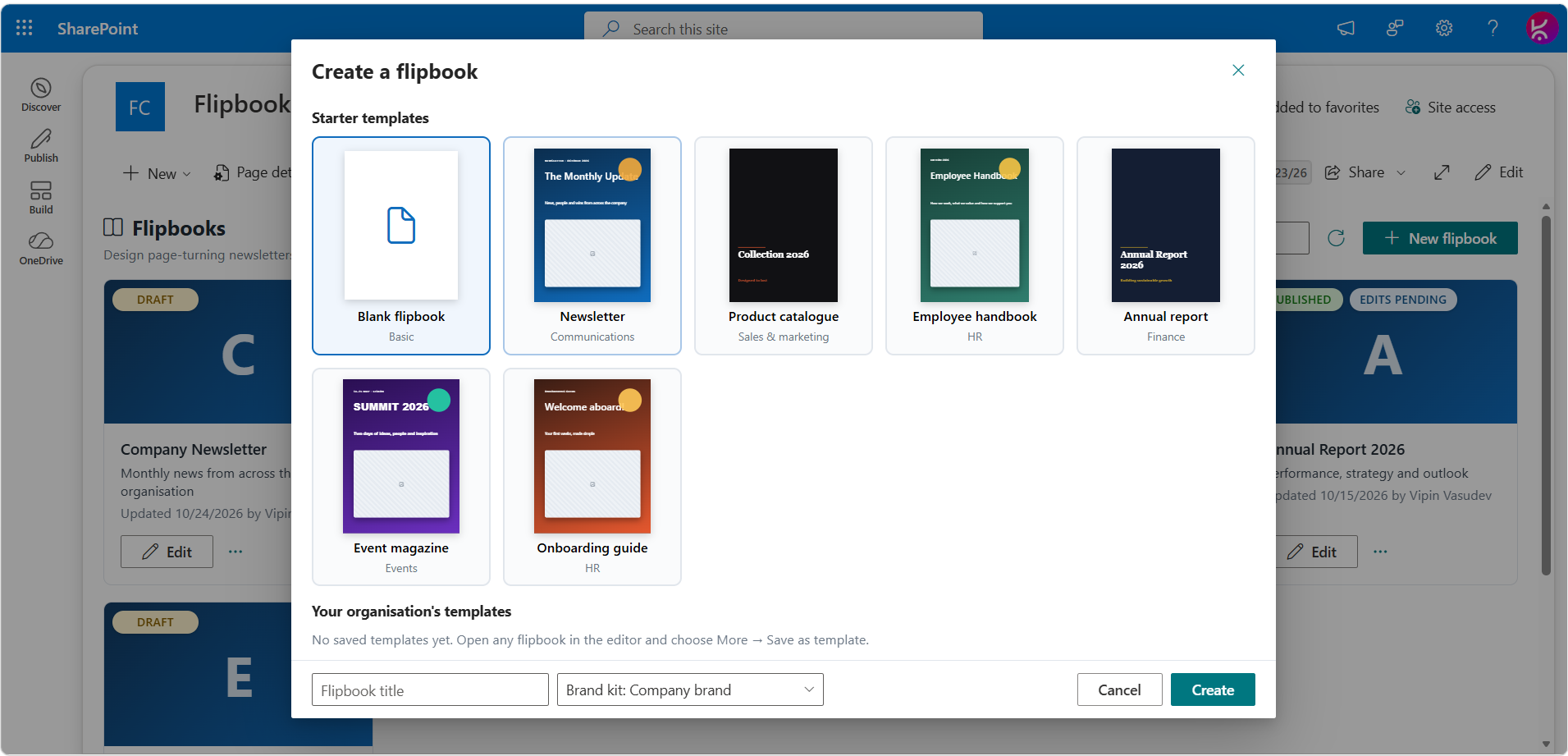
- Six starter flipbooks: newsletter, product catalogue, employee handbook, annual report, event magazine and onboarding guide.
- Brand kit: save company colours, fonts (including your own font files) and logos once and apply them everywhere.
- Save any flipbook as a template for reuse across teams and departments.
Reading experience
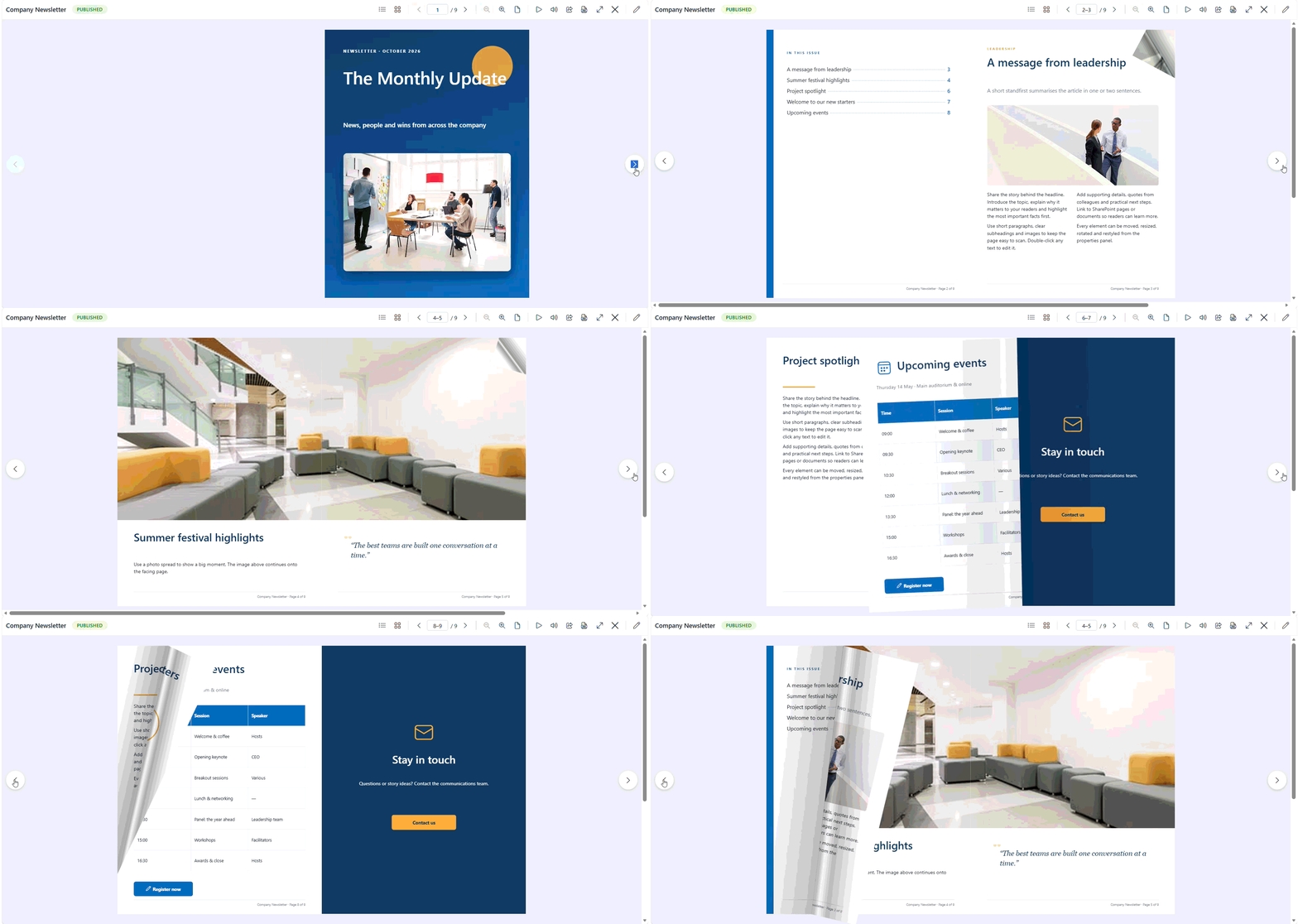
- Realistic page-turn animation with optional flip sound.
- Single and double-page views that adapt to screen size.
- Zoom, full screen, thumbnail navigation and a contents panel.
- Swipe, touch, mouse and keyboard support on desktop, tablet and mobile.
- Autoplay and kiosk mode for reception screens and digital signage.
- Deep links that open the flipbook at a specific page.
Sharing and export
- Share links that open a full-page reader for colleagues.
- Embed codes for SharePoint pages and Microsoft Teams tabs.
- Download a standalone HTML flipbook for external audiences – it opens in any browser, even offline.
- Export to PDF for printing or offline sharing, with clickable links.
Publishing and collaboration
- Draft and publish states: edit privately, then publish when ready.
- Inline editing: authorised editors edit in place; readers see only the finished flipbook.
- Preview in desktop, tablet and mobile sizes before publishing.
- Autosave and a warning when someone else has saved the same flipbook.
- Version history: preview and restore any earlier version.
Security and governance
- Respects SharePoint permissions, with separate rights for editors and readers.
- All content is stored in your tenant, in SharePoint lists and libraries – nothing on external servers.
- Works with your existing compliance, retention and sensitivity policies.
- Optional central storage site, such as a communication hub, for every flipbook in the organisation.
Use cases
| Team | What they publish | Starter template |
|---|---|---|
| Internal communications | Monthly company newsletter, leadership updates, intranet magazine | Newsletter |
| Human resources | Employee handbook, benefits guide, policy booklet | Employee handbook |
| HR and people teams | New-joiner welcome book with first-week plan and key contacts | Onboarding guide |
| Sales and marketing | Product catalogue, brochures, price books, campaign lookbooks | Product catalogue |
| Finance and leadership | Annual report, quarterly results, board packs with charts and tables | Annual report |
| Events | Conference programme, speaker profiles, venue guide | Event magazine |
| Facilities and reception | Rolling welcome screens and notices in kiosk mode | Any template with autoplay |
How to create a flipbook in SharePoint
You can publish a first flipbook in five steps, without leaving SharePoint.
- Install the web part. Upload the app package to your SharePoint app catalog and add Flipbook Creator to any modern page.
- Set up storage. A site owner selects Create storage once; the web part creates the lists and library it needs.
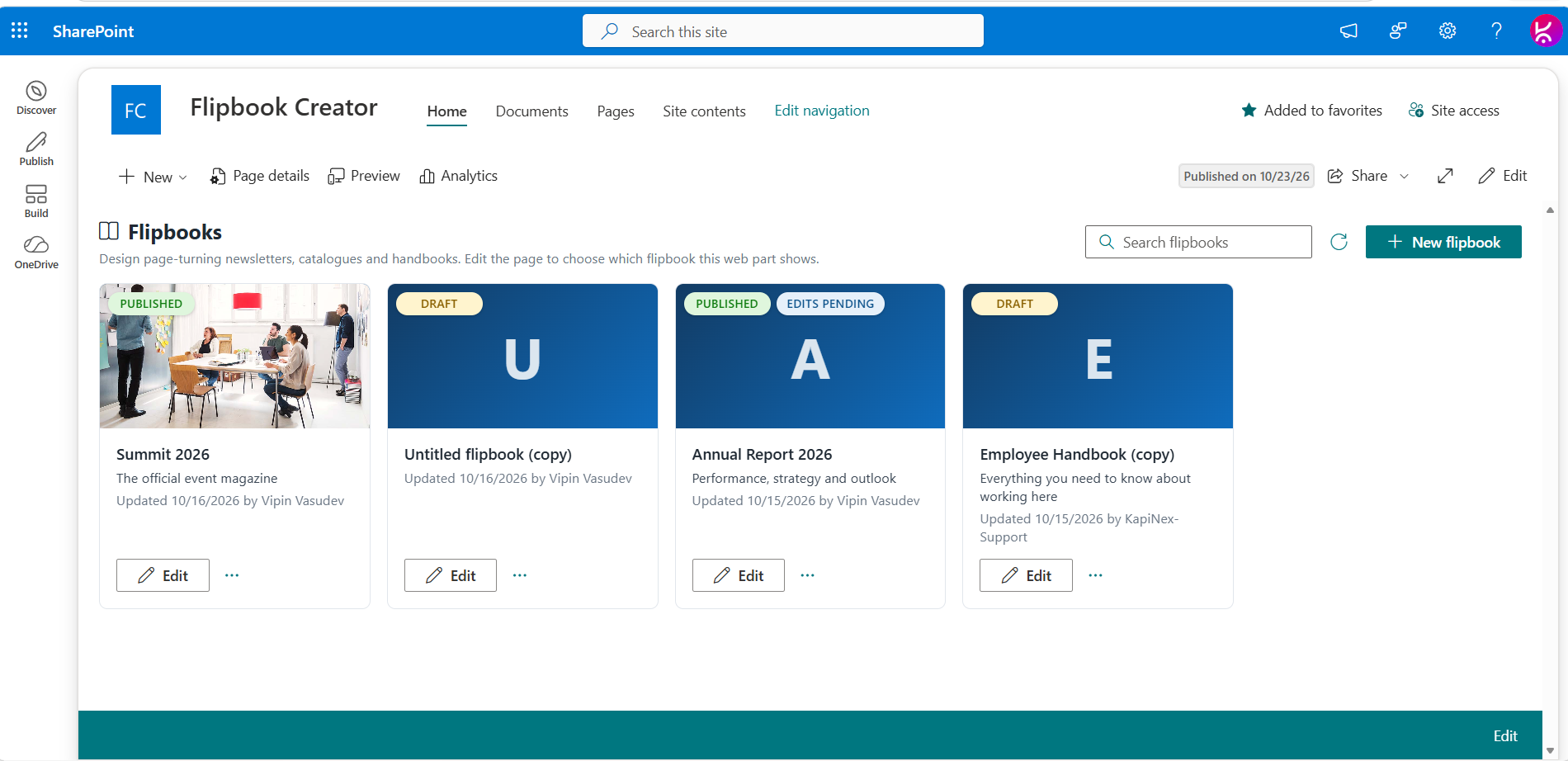
- Start from a template. Select New flipbook, then pick a starter template or a blank book and apply your brand kit.
- Design your pages. Add text, images, video, charts and buttons with drag and drop, and add or reorder pages from the thumbnail panel.
- Preview and publish. Check the desktop, tablet and mobile preview, then select Publish – readers see the finished flipbook on the page straight away.
Technical specifications
| Specification | Detail |
|---|---|
| Built with | SharePoint Framework (SPFx) 1.20, React |
| Supported hosts | SharePoint Online modern pages, full-width sections, full-page app, Microsoft Teams tab and personal app |
| Deployment | Single .sppkg package via the tenant or site collection app catalog; can be made available to all sites |
| Storage created | Flipbooks list (versioned), FlipbookContent document library (versioned), FlipbookBrandKits list |
| Permissions model | SharePoint Read for readers, Edit on the Flipbooks list for editors, Manage Lists for initial set-up |
| API permissions | None required |
| External services | None – PDF and HTML exports are generated in the browser |
| Browsers | Current versions of Microsoft Edge, Google Chrome, Mozilla Firefox and Safari |
| Devices | Desktop, tablet and mobile (single-page view on small screens) |
| Web part settings | Flipbook to display, central storage site, toolbar, sound, PDF and HTML download permissions, maximum height, share-link handling, autoplay and kiosk mode |
Note: Full-width sections are a standard SharePoint limitation. They are natively supported only on Communication Sites and are not available on Team Sites. This applies to all web parts, including Microsoft’s out-of-the-box web parts and custom-developed ones.
If you are using a Team Site and need a full-width layout, you can download and install our FullWidth extension from here.
Frequently asked questions
Each answer opens with a complete sentence so it can be quoted on its own by search engines and AI assistants.
Can I create a flipbook in SharePoint without a PDF?
Yes. Flipbook Creator lets you design every page directly in SharePoint with a drag-and-drop editor, so there is no PDF to create, upload or convert. You add text, images, video, charts and tables page by page, and readers see a page-turning flipbook.
Where is my flipbook content stored?
All flipbook content is stored in your own Microsoft 365 tenant. Pages, versions, templates and uploaded media are kept in SharePoint lists and a versioned document library, and nothing is sent to external servers.
Does Flipbook Creator respect SharePoint permissions?
Yes. Readers need read access to see a published flipbook, and only people with edit rights can create, edit or publish. Drafts stay private to editors until they are published.
Can I use my company branding?
Yes. A brand kit stores your colours, fonts, font files and logos once, and applying it re-themes the whole flipbook in one click. Any kit can be set as the default for new flipbooks.
Does it work on mobile devices and in Microsoft Teams?
Yes. The reader switches to a single-page view on phones and supports swipe and touch, and the web part can be added as a Microsoft Teams tab or personal app.
Can I share a flipbook with people outside my organisation?
Yes. You can download a standalone HTML flipbook that opens in any browser without a SharePoint account, or export a PDF. Inside the organisation, share links and embed codes keep SharePoint permissions in place.
Can I restore an earlier version of a flipbook?
Yes. Every save and publish creates a version in the SharePoint library, and the built-in version history lets you preview and restore any earlier draft or published version.
Can I embed video in a SharePoint flipbook?
Yes. You can add SharePoint and Microsoft Stream videos, YouTube and Vimeo links, or embed code, and the video plays inside the page.
Can a flipbook run on a reception screen?
Yes. Autoplay turns pages automatically at a chosen interval, and kiosk mode shows the flipbook full screen with the controls hidden, which suits digital signage.
What SharePoint version does Flipbook Creator need?
Flipbook Creator runs on SharePoint Online in Microsoft 365. It is built on the SharePoint Framework (SPFx) and is installed from your app catalog like any other SPFx web part.



There are no reviews yet.